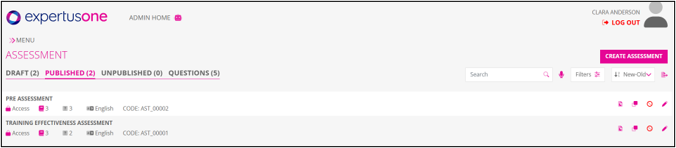
Video Assessment
The Assessment Video enables administrators to upload video files to assessment questions, supporting multiple formats, and allows learners to play, pause, and replay videos using standard controls. Admins can manage these videos, including deletion from the content repository.
- Supported Formats: PNG, JPG, JPEG, GIF, MP4, MPG.
- Video Controls: Learners can play, pause, and replay videos.
- Content Management: Admins can upload and delete videos from the content repository.
- Integration: Videos are embedded directly in questions.
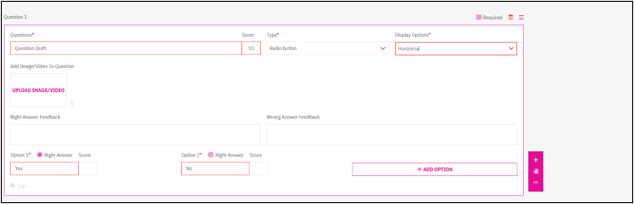
1. Navigate to Questions:
- Go to Side Menu → Assessment → Question.
2. Create or Edit a Question:
- Click Create Question or select an existing question to edit.
3. Add Video:
- Click the Add Image/Video To Question button.
- In the pop-up window, upload a video file (e.g., MP4) from your local device.
- Supported formats: PNG, JPG, JPEG, GIF, MP4, MPG.
4. Verify Upload:
- Upon successful upload, the video is embedded in the question.
- A Delete Icon appears next to the video.
5. Delete Video (Optional):
- Click the Delete Icon to remove the video from the question and the content repository.
6. Save Changes:
- Save the question to apply the video integration.
- Save or publish the assessment to include the question.
Action Icons in Assessment
Similar as explained in the survey section, Please Refer.
Edit Assessment
Similar as explained in the survey section, Please Refer.
Listing Page of Assessment
Similar as explained in the survey section, Please Refer.