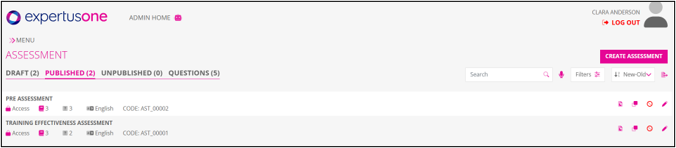
Standalone Assessment
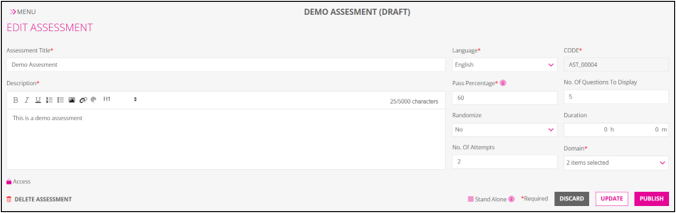
The “Standalone” checkbox allows assessments to function independently of training. Enabling this checkbox ensures that learners can access the assessment directly from the “My Learning” section without needing it to be attached to any training.
Rules:
- By default, the checkbox is disabled.
- Once enabled and published, the assessment becomes standalone and cannot be attached to any training.
- If the assessment is attached to a training, the checkbox is automatically disabled and becomes editable only after disassociating it from the training.
- Once a standalone assessment is published, the checkbox cannot be disabled.
Steps to Create Standalone Assessments
1. Navigate to Assessments:
- Go to Manage → Assessment or Quick Access → Edit.
2. Access Create or Edit Assessment Page:
- Click Create Assessment or select an existing assessment to edit.
3. Enable Standalone Checkbox:
- Locate the Standalone checkbox (just before the Discard button).
- Check the box to enable standalone mode.
4. Complete Assessment Details:
- Fill in fields like Title, Description, Pass Percentage, and add questions.
- Upload the thumbnail image for the assessment
5. Publish the Assessment:
- Click Publish to activate the standalone assessment.
6. Verify Learner Access:
- Learners can access the assessment in their My Learning section.
- Assessment status appears in relevant LMS reports.
Note: Learners will find the standalone assessment under their “My Learning” section. The assessment status will also be reflected in relevant reports.
Once a standalone assessment is created and published, the “Standalone” checkbox cannot be disabled.
Action Icons in Assessment
Similar as explained in the survey section, Please Refer.
Edit Assessment
Similar as explained in the survey section, Please Refer.
Listing Page of Assessment
Similar as explained in the survey section, Please Refer.